
You no longer need a scanner to send a clean copy of a document. Your phone camera can produce a sharp, straight, readable PDF in seconds, and with OCR (text recognition) you can even turn that scan into text or a Word file you can edit.
But a quick photo is not the same as a proper scan. Shadows, tilted pages and blurry text are why so many “scanned” documents get rejected by offices, banks and colleges. Here is how to get it right.
Photo vs scan: what is the difference?
A photo captures everything in the frame: the table, your fingers, the shadow of your phone. A scanner app detects the edges of the page, straightens it, removes the background and improves contrast so the text looks like it came from a real scanner. The result is smaller, cleaner and easier to read.
How to get a clean scan every time
- Use good light. Daylight near a window is best. Avoid overhead lights that cast your phone’s shadow on the page.
- Use a dark, plain background. A white page on a dark table makes edge detection much more accurate.
- Hold the phone parallel to the page. Keep it flat above the document, not at an angle.
- Fill the frame. Get close enough that the page takes up most of the screen.
- Check the edges. Adjust the corners if the app did not catch them perfectly.
- Pick the right filter. Black and white for text documents, colour for photos, certificates and stamps.
Scanning several pages into one PDF
For forms, agreements or notes, scan all pages one after another into the same document, then check the order before saving. Most scanner apps let you reorder, rotate or delete pages before you create the final PDF.
Scanning an ID card on one page
Many forms ask for both sides of an Aadhaar card, PAN card or driving licence on a single A4 page. Instead of scanning two pages and joining them, use an ID card mode that places the front and back on one sheet automatically. It looks neater and is exactly what most offices expect.
Privacy tip: only share copies of ID documents with people who genuinely need them, and prefer apps that process files on your phone instead of uploading them to a server.
Turning a scan into text or an editable Word file
A normal scan is just an image inside a PDF. You cannot search it or edit it. OCR reads the letters in the image and converts them into real text. With it you can:
- Copy text from a printed page instead of typing it again.
- Create a searchable PDF, where you can search for words inside the scan.
- Export to an editable Word (.docx) file to correct or update the document.
OCR works best on clear, printed text. Handwriting and very small fonts give weaker results, so a sharp scan makes a big difference.
Make the PDF small enough to upload
Government portals and job sites often limit uploads to a few hundred KB. If your PDF is too large, compress it, or use black-and-white mode for text pages, which produces much smaller files than colour.
Other useful PDF jobs on your phone
- Merge several PDFs into one, for example all documents for one application.
- Split a long PDF to send only the pages someone needs.
- Sign a document with your finger instead of printing and rescanning it.
- Lock a PDF with a password before sharing sensitive files.
An app that does all of this
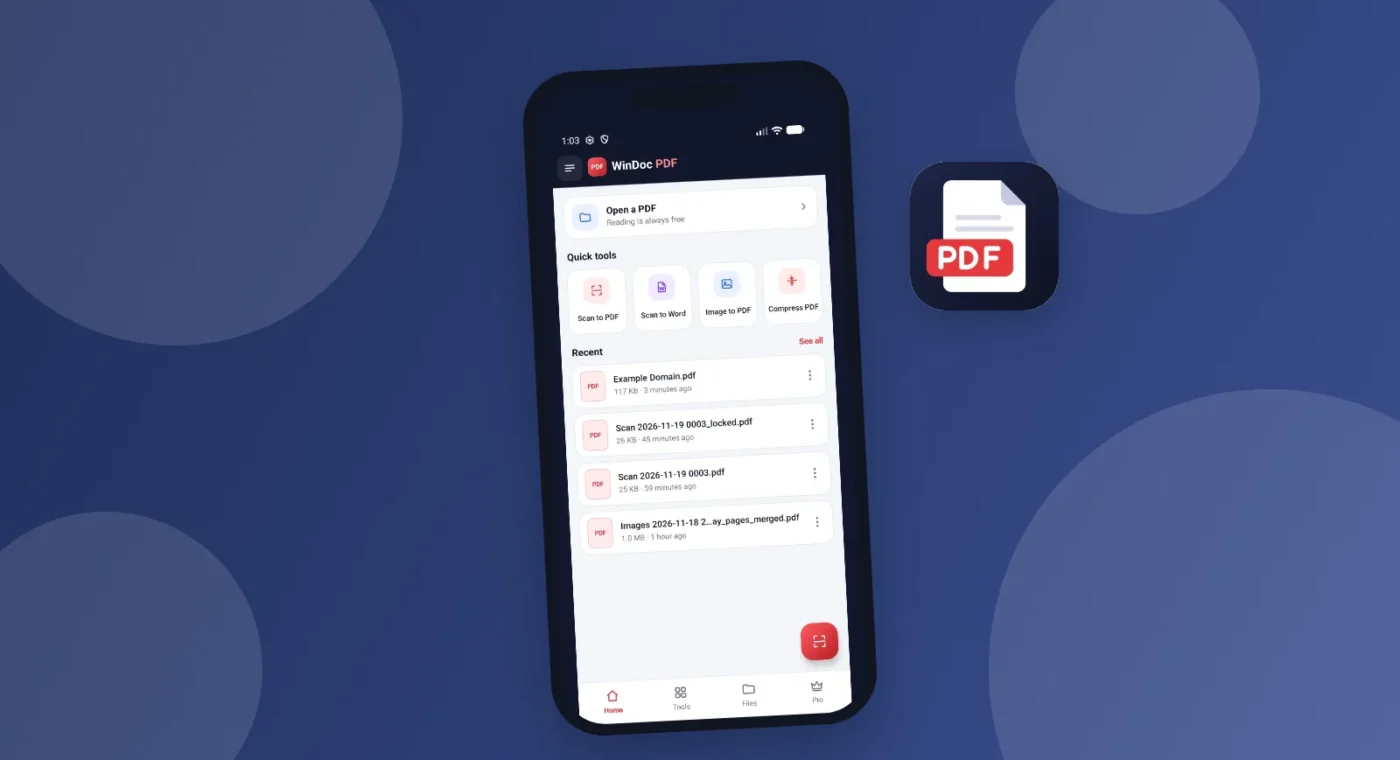
WinDoc PDF, our PDF reader and scanner for Android, covers every step in this guide: edge detection and clean-up, two-sided ID card scans on one A4 page, OCR to text, searchable PDF or editable Word, plus merge, compress, sign and password lock. Files are processed on your phone, not uploaded to our servers. Reading PDFs is free. Get it on Google Play.
Frequently asked questions
Is a phone scan accepted for official forms?
In most cases yes, as long as it is clear, complete and within the size limit. Always check the specific instructions of the portal or office.
Why is my OCR text full of mistakes?
Usually because of blur, shadows or low contrast. Rescan in better light, hold the phone steady and choose the black-and-white filter for printed text.
Can OCR read Hindi?
Many OCR tools support Devanagari today. Results are best with clear printed text in a standard font.
The short version
Good light, a dark background, the phone held flat and the right filter give you a clean scan. Use OCR when you need text or an editable Word file, and compress the PDF before uploading.